Download
AMBOSS.
Download the desktop app, enter the licence key from your purchase email, and get going. Premiere Pro stays your editor — AMBOSS works next to it.
Download AMBOSS for Mac (.dmg)Please tick the box above to start the download.
No licence key yet? Pick a plan here.
What's new in 2.0.12?
July 16, 2026
- Motion graphics studio: the font and accent color you pick are now applied reliably — including installed system fonts.
- Team and agency seats use AI and AI video fully managed, without keys of their own.
- Tidier settings: no more redundant key fields.
- Improvements to multicam and J-cuts.
Up and running in three steps
 AMBOSS
Install
Open the .dmg you just downloaded and drag AMBOSS into your Applications folder. Then launch AMBOSS from the Applications folder.
Lizenz-Key
Enter your licence key
The first time you launch it, AMBOSS asks for your licence key. You will find it in the email you get right after your purchase.
The app interface is German only for now: this screen reads "Lizenz-Key" (licence key) and "Aktivieren" (activate).
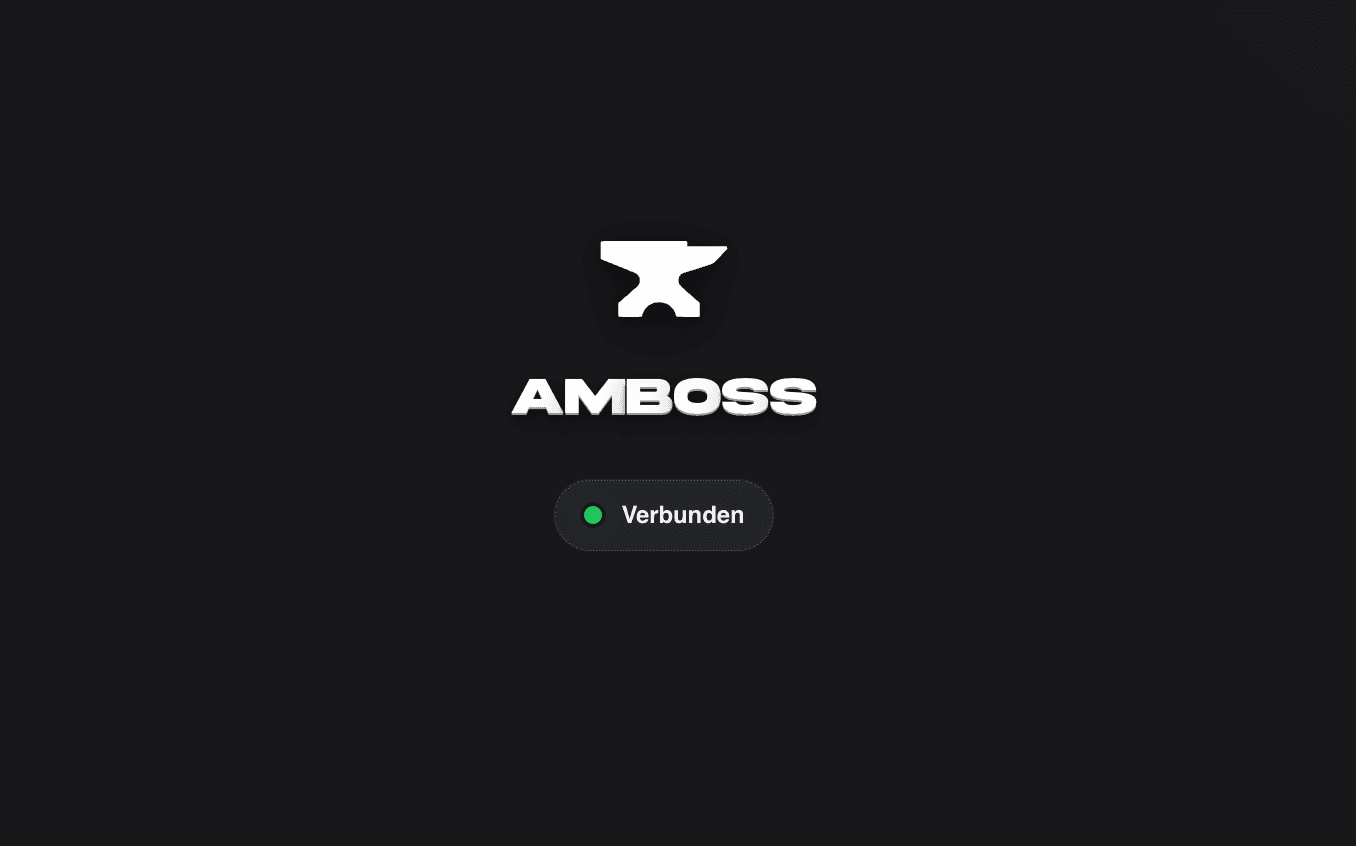
Connect Premiere Pro
In Premiere, open the panel via Window → Extensions → AMBOSS. It connects to the app automatically as soon as a sequence is open. No AI accounts, no keys — the AI runs entirely through AMBOSS.
The app interface is currently German only.
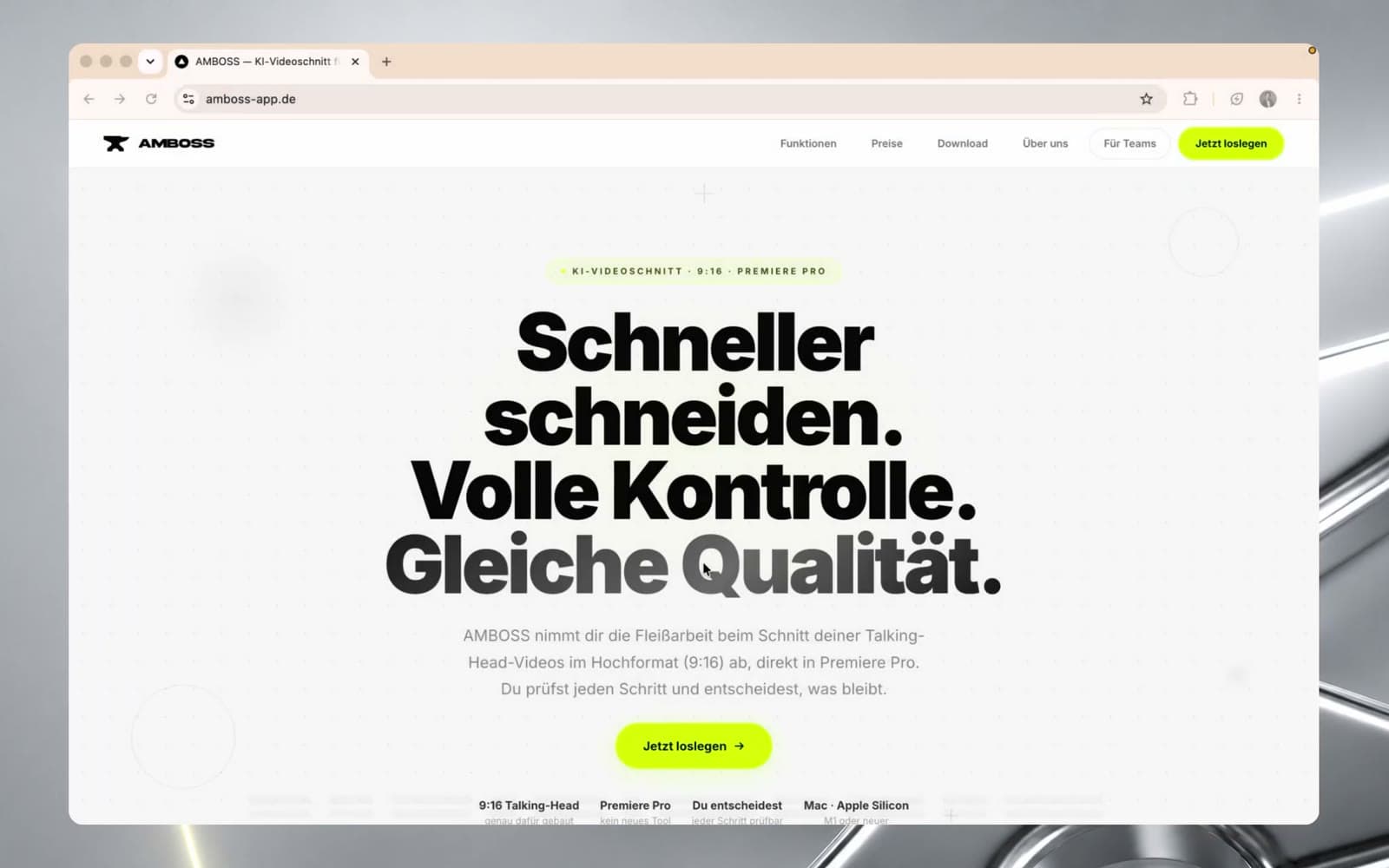
Watch the install guide
From buying to a connected panel in Premiere Pro — the video takes you through all of it at an unhurried pace, with every step written out beside it.
The walkthrough video is in German.
Go to the install guideHelp: "AMBOSS kann nicht geöffnet werden" (German for "AMBOSS can't be opened")?
The very first time you open an app that did not come from the App Store, macOS sometimes blocks it. That is a standard Apple warning, not a fault in AMBOSS. Here is what to do:
- 1
In the Applications folder, right-click AMBOSS and choose "Öffnen" (German for "Open"), then "Öffnen" once more in the dialog. Only needed on the very first launch.
- 2
If macOS keeps blocking it: open Terminal (Spotlight → "Terminal"), paste this line, hit Enter — then open the app as usual:
xattr -dr com.apple.quarantine /Applications/AMBOSS.app
Still stuck? Write to us at support@amboss-app.de.